Pavo AI Image & Video Maker: Plan a Clip From a Still
Build a still-to-motion workflow with the Pavo AI Image & Video Maker app, or use paired image and video prompts in the pavoai.net browser generator.
“Pavo AI Image & Video Maker” is how people often refer to the mobile app listed as Pavo - AI Image & Video Maker on Google Play. Its listing describes AI image creation, image-to-video and creative templates. The browser generator on pavoai.net offers separate text-to-image and text-to-video modes. Here is how to use a still to plan a shot in either workflow.
Design the still around the motion
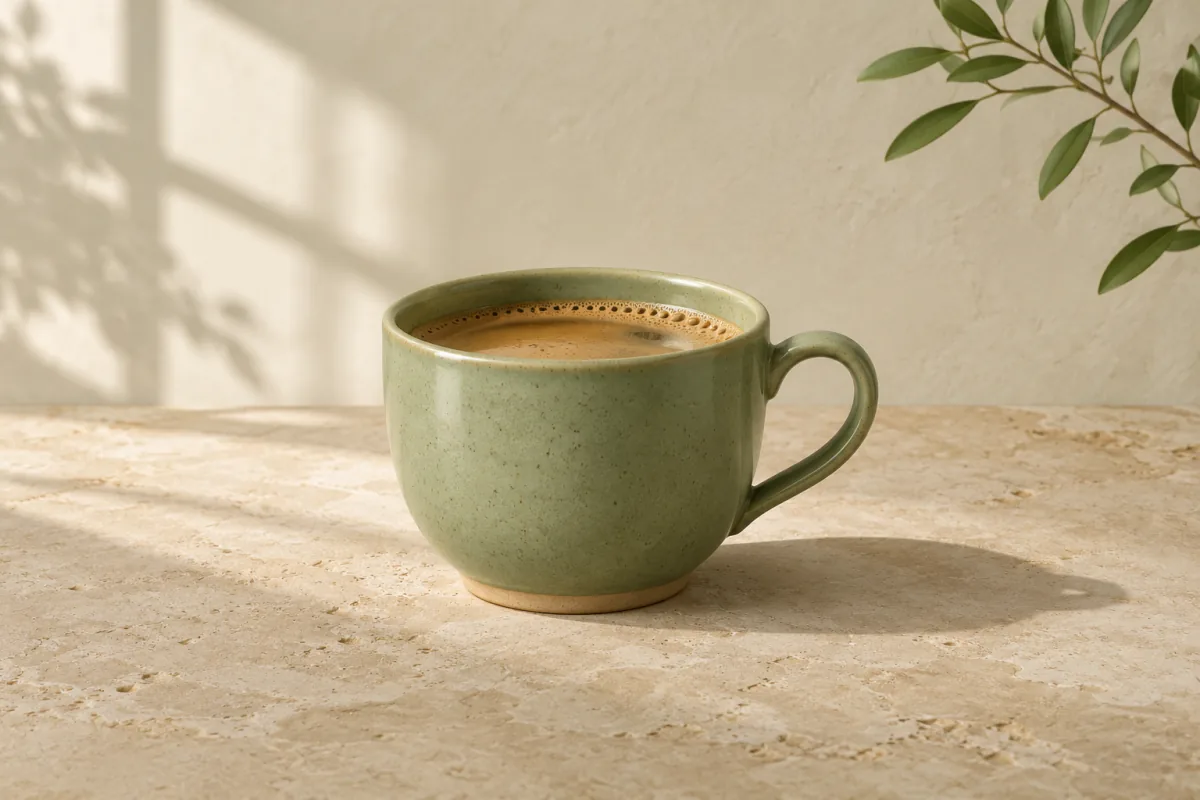
Start with one recognizable subject. A cup with a curved handle is a good test because you can quickly spot whether its silhouette changes. Leave clear space around the cup so the planned steam has somewhere to move. Keep the background simple and choose the aspect ratio you want for the final clip.
Try this still prompt in the Pavo AI image generator:
Sage green ceramic cup with one curved handle on warm limestone. Soft window light from the left. A fixed medium shot with the cup fully in frame and open space above the rim. No steam, lettering or logos.
Inspect the handle, rim and shadows before moving on. If you want room for a caption, leave that space in the image rather than relying on the video step to find it.
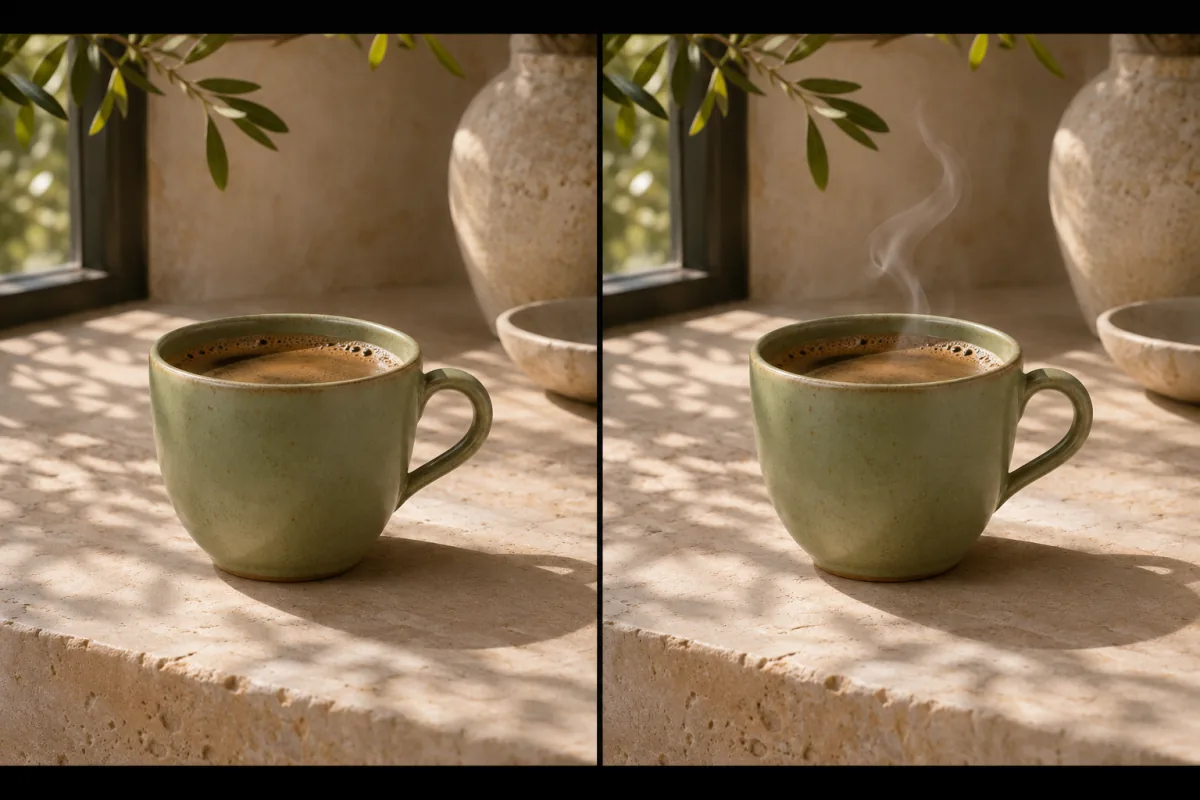
A motion plan for the same composition. Only the steam is meant to change.
Choose how the still informs the clip
Animate the actual image in the mobile app
In the store-listed app, use its image-to-video workflow if available in your version. Choose a still you have permission to use. Describe what moves and what stays fixed: “A thin curl of steam rises from the cup. Keep the cup, handle and camera still.” Review the selected workflow and its credit cost before you generate.
Use the still as a shot plan on pavoai.net
The text-to-video mode on pavoai.net starts from a text prompt. Carry the details you liked into the video prompt and add the movement:
A sage green ceramic cup with one curved handle sits on warm limestone in soft window light from the left. A thin curl of steam rises slowly. Fixed medium shot. The cup and handle remain still and fully in frame.
The video is a fresh take based on that description, so compare it against the still for changes in color, shape or framing.
Decide when the original image matters
For a product mockup, start with a clean image that shows the edges, materials and details you need to keep. Animate that exact image in an image-to-video workflow if your app version offers one. Review the output against the original at the start and end. Even a small movement can change lettering, a handle or the outline of a package.
If the goal is to explore a mood or a camera angle, a written description is enough to make a new take. Describe the parts of the still you want to carry over, such as light from a window on the left and a sage green cup on limestone. Give the new shot room to vary in details that don't affect your project.
Use the Pavo AI image and video maker workflow for a product teaser
Suppose you need a vertical clip of a blue insulated bottle for a social post. Start by generating a still in Image mode. Keep the full lid and base visible, use a plain warm gray background, and leave space near the top for a caption. Use the same vertical aspect ratio for the motion pass.
A matte blue insulated bottle stands upright on a warm gray table. Soft light from the left outlines the lid. The camera moves slowly from left to right while the bottle stays still. Keep the full bottle inside the frame and leave open space above it.
Check that the lid and the shoulder of the bottle keep their shape. If the camera move warps the silhouette, try a locked camera with one moving reflection on the side of the bottle. Save the still alongside both video prompts so you can tell which motion instruction produced the better take.
Questions about image-to-video
Why does my generated video look different from the still?
With text-to-video, the model interprets your description and creates new frames. Include the subject color, materials, relative position and lighting in the prompt. If you need a specific source image to influence the result directly, look for image-to-video in the app and check which input is selected before generating.
How can I keep a portrait from changing too much?
Use a reference you're allowed to use, keep the face clearly visible, and test one small movement such as a blink. Review the eyes, outline and background across several frames before adding stronger movement or a new camera angle.
Keep a pair you can reuse
Save the original image, its prompt, the motion prompt and the preferred clip. On the next version, adjust one element, such as the speed of the steam, while keeping the subject and composition consistent. For help refining that video prompt, follow the Pavo AI video generator guide. To check which app to install, see the Pavo AI mobile app guide.